 Webinar Sync
Stop pasting Zoom links.
Webinar Sync registers every signup in your Zoom webinar, saves their personal join link on their contact, and tags who showed up. Your follow-up runs itself.
Where webinar follow-up breaks
"Where's the link?"
People sign up on your page, but the Zoom registration lives somewhere else. Someone copies them over by hand, or a Zapier chain does it until it quietly stops.
Generic links, locked doors
Send everyone the same link and Zoom can't tell who's who. Registered attendees get stuck in the waiting room, and your attendance report is a guess.
No-shows get the wrong email
Without attendance on the contact, everyone gets the same follow-up. Attendees get the replay. No-shows get an offer for a talk they never saw.
How it works
Signups go straight into Zoom
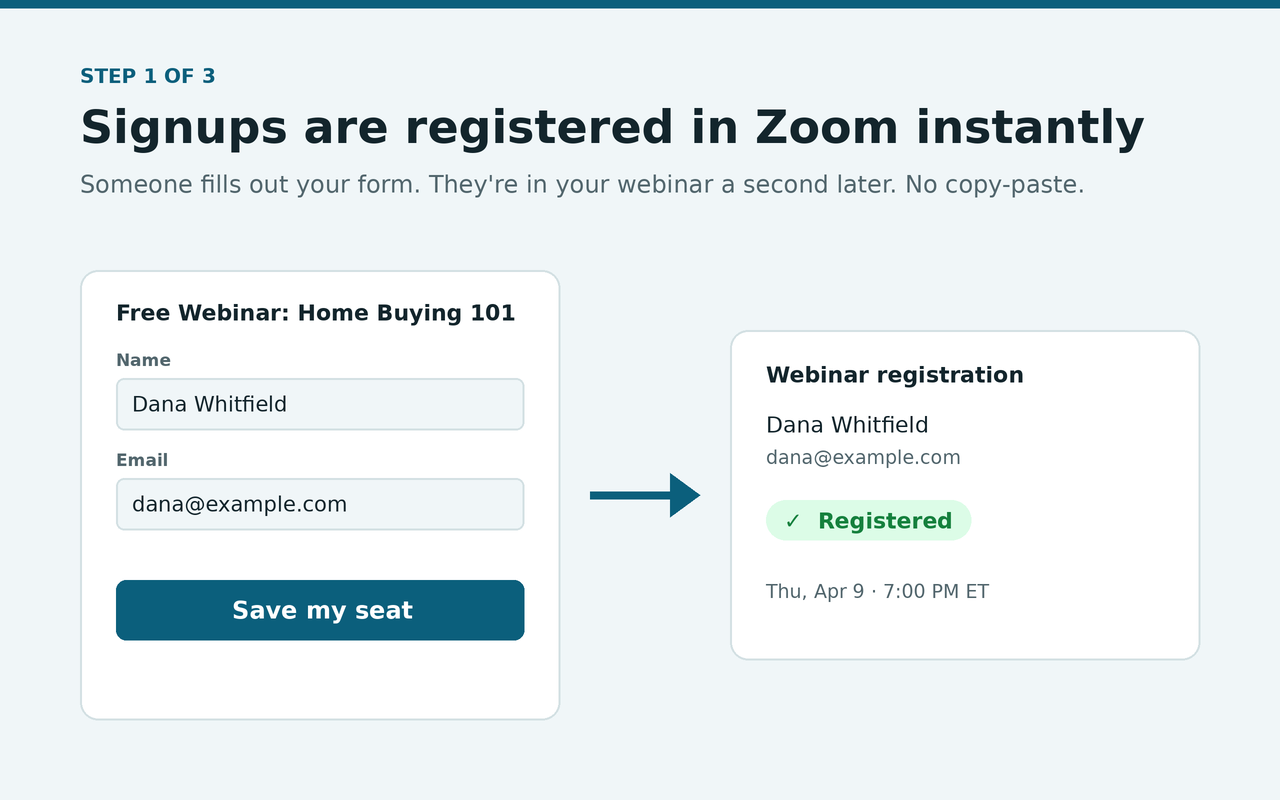
Add one action to the workflow that runs when someone fills out your form, survey, or funnel. Webinar Sync registers them in your Zoom webinar or meeting right away.
Their own join link, on their contact
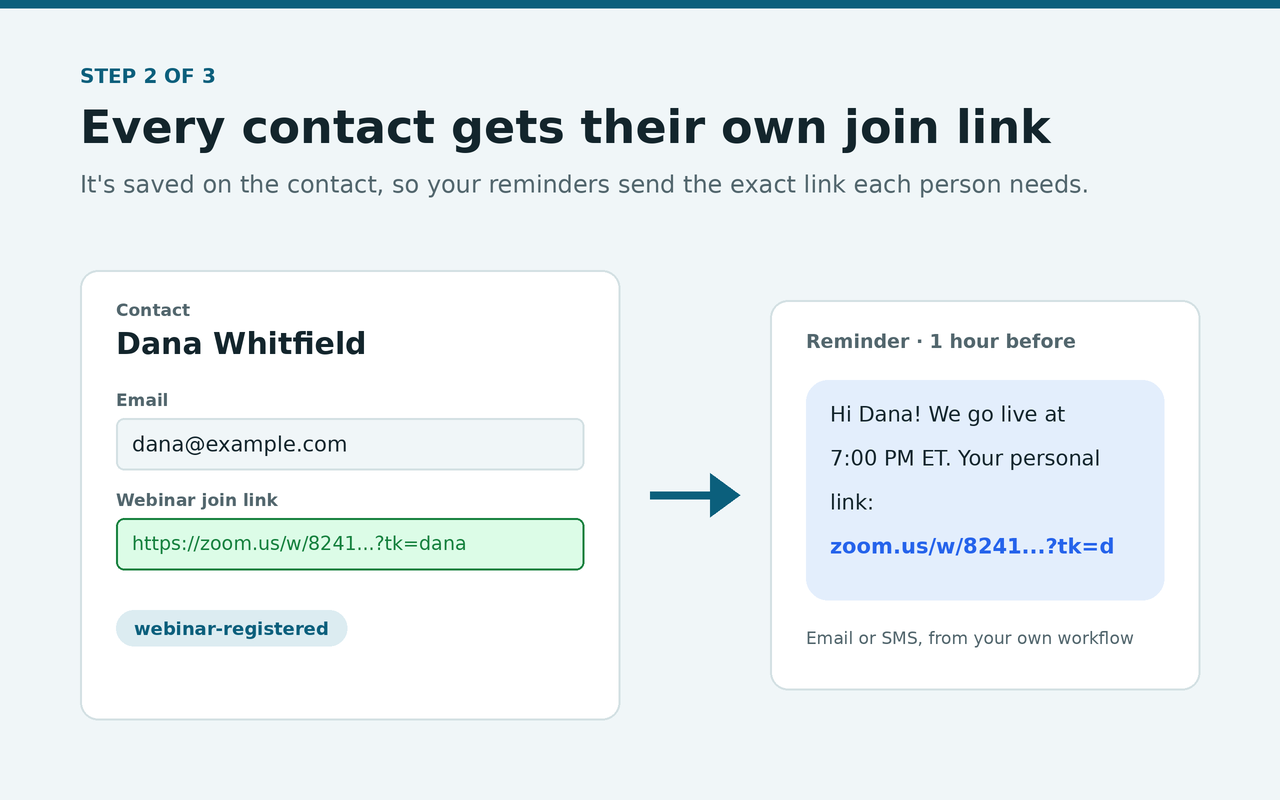
Each person's unique Zoom link is saved to the contact field Webinar Join Link. Drop it into your reminder emails and texts, and everyone gets the link that's actually theirs.
Attended or No-Show, tagged for you
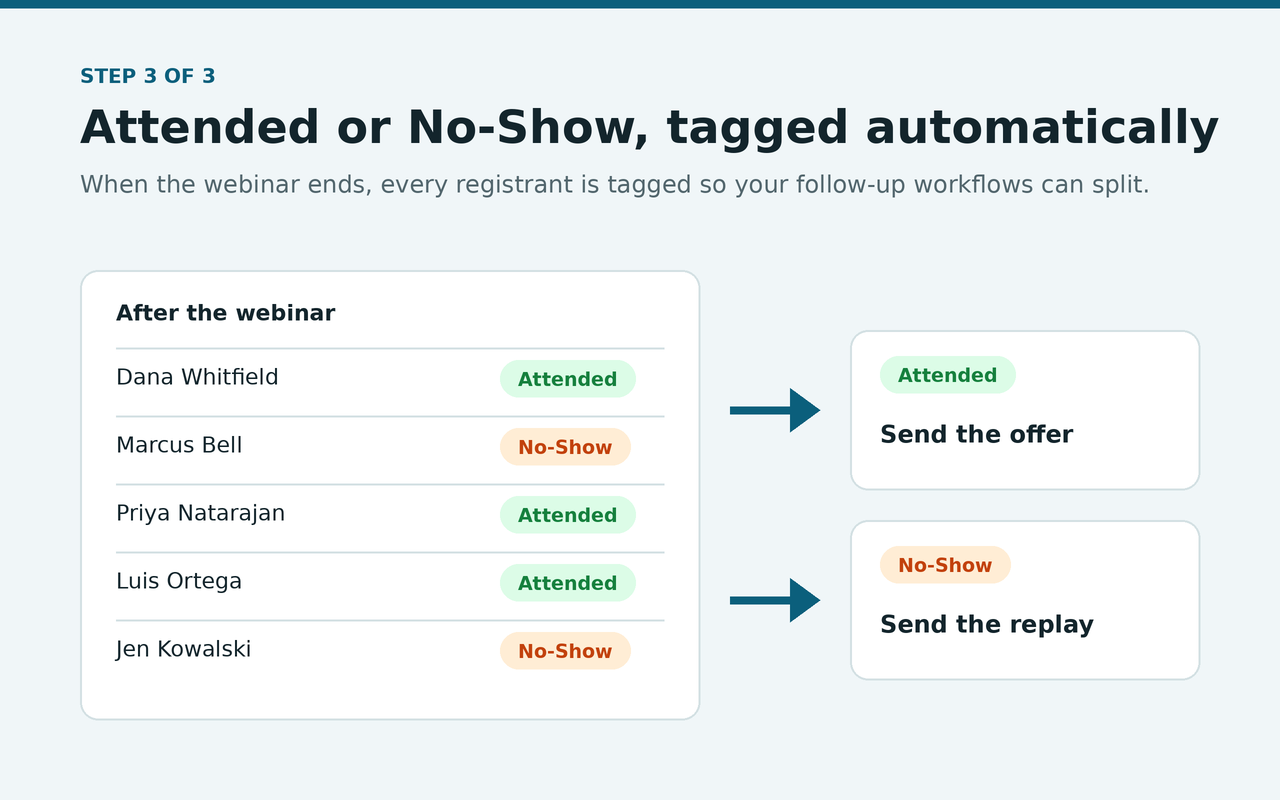
When the event ends, every registrant is tagged webinar-attended or webinar-no-show. Start your replay and offer workflows from those tags.
Using HighLevel Events for your webinar?
Events gives everyone the same link
For online events, HighLevel Events uses a meeting link you paste in, so every attendee gets that same link and Zoom can't tell who actually joined.
Add Webinar Sync to the registration workflow
Start a workflow when someone registers for your event and add Register for Zoom Webinar. Each attendee is registered in Zoom with their own join link, saved on their contact.
Know who showed up
After the event, every registrant is tagged webinar-attended or webinar-no-show, so the replay and the offer go to the right people.
Pricing
Free
- One event
- Up to 50 registrations
- Join links and attendance tags included
Run a real event and see it work before you pay.
Unlimited
- Unlimited events
- Unlimited registrations
- Webinars and meetings
Upgrade from the App Marketplace when you're ready.
Set it up in a few minutes
- Install Webinar Sync from the App Marketplace in your sub-account.
- On the setup page, click Connect Zoom and sign in to the Zoom account that hosts your events.
- Make sure workflow premium actions are on for the sub-account. An agency admin turns them on in Settings → Workflow - Premium Features. App actions only appear in workflows when this is on.
- In the workflow that runs when someone signs up, add the action Register for Zoom webinar and paste the event ID shown on the setup page.
- In your reminder emails and texts, insert the contact field Webinar Join Link.
- After the event, use the webinar-attended and webinar-no-show tags to start your follow-up.
We ask for only what it needs. Nothing more.
When you install and connect Zoom, you're asked to approve these permissions. Here is every one, in plain words, and exactly what we use it for.
In your CRM
| Permission | What we use it for | Technical name |
|---|---|---|
| Read contacts | To look up the contact a workflow sends us, so we register the right name and email. | contacts.readonly |
| Update contacts | To save each person's Webinar Join Link and add the registered / attended / no-show tags. | contacts.write |
| Read custom fields | To find the Webinar Join Link field if it already exists. | locations/customFields.readonly |
| Create custom fields | To create that one field the first time, so you don't have to. | locations/customFields.write |
| Read workflows | Required by the platform for any app that adds a workflow action. We don't read or change your workflows. | workflows.readonly |
In Zoom
| Permission | What we use it for | Technical name |
|---|---|---|
| See your Zoom user | To show which Zoom account is connected. | user:read:user |
| List your webinars and meetings | To show your upcoming events and their IDs on the setup page. | webinar:read:list_webinars · meeting:read:list_meetings |
| Register people | To register each signup and get their personal join link. | webinar:write:registrant · meeting:write:registrant |
| See who attended, after it ends | To tag who attended and who didn't. Read only after the event has ended. | webinar:read:list_past_participants · meeting:read:list_past_participants |
What we never ask for
No access to your conversations, calendars, opportunities, payments, or other sub-accounts. In Zoom, no access to recordings, chat, or meeting content, and nothing that changes your Zoom settings.
Questions
What do I need in Zoom?
A paid Zoom account. Webinars need Zoom's Webinars add-on. Regular meetings work too, as long as registration is turned on in the meeting's settings.
Does HighLevel charge anything extra?
HighLevel counts app actions as premium workflow actions. Each sub-account gets 100 free runs, and after that HighLevel bills a small per-run fee to the agency wallet. That fee is HighLevel's, separate from the Webinar Sync plan.
Does it work with HighLevel Events?
Yes. Events handles your event page and tickets; Webinar Sync handles Zoom. Start a workflow when someone registers for the event, add the Register for Zoom Webinar action, and put the Webinar Join Link field in your event reminders instead of a shared meeting link.
Does every contact need an email?
Yes. Zoom requires an email address to register someone. Contacts without one are skipped and logged.
How soon are attendance tags added?
After the event ends, usually within an hour or two of the start time. Webinar Sync checks Zoom's participant list on its own and keeps checking until the event is over.
What happens to my data if I uninstall?
Access to your accounts is cut off right away, and registration records are deleted within 30 days. See the privacy policy.